Assign a shortcut folder to a mouse button
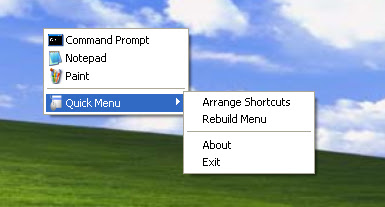
It is possible to run QuickPopMenu.exe with a command line by specifying a shortcut folder. This is useful when you need to assign a menu to an extended mouse button. Let’s say you have a five-button-mouse and you can call a menu with the forth or fifth buttons.
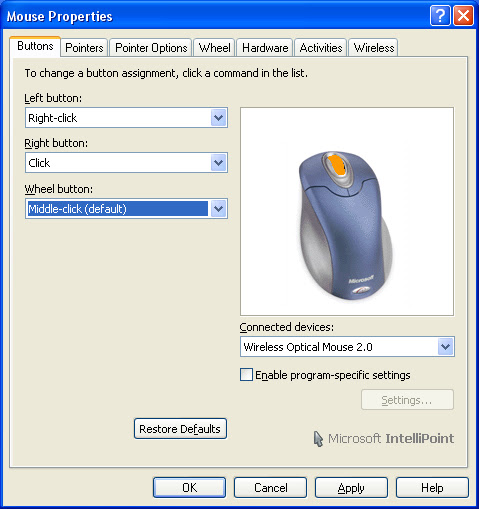
The below tutorial uses Microsoft Intellimouse to demonstrates how to assign a menu to the middle button.
Microsoft Intellimouse
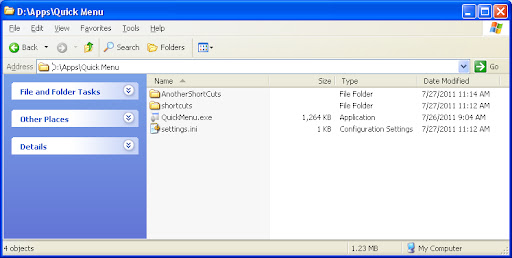
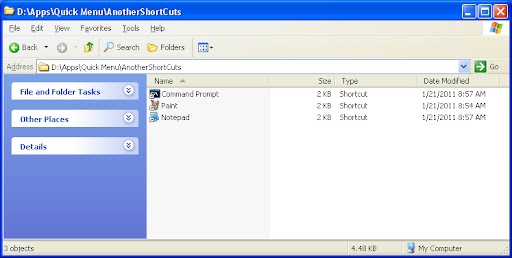
- First, create a folder for a custom menu. As an example, “AnotherShotcuts” is placed in the same folder where the program resides. It could be anyplace though.
- Place .lnk files in the target folder just created.
- In the Intellimouse Control Panel, go to the button setting that invokes QuickPopMenu.exe
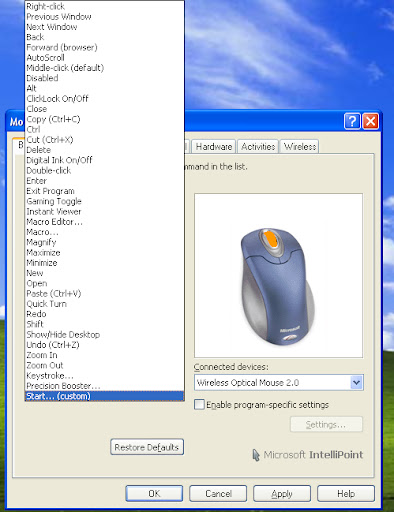
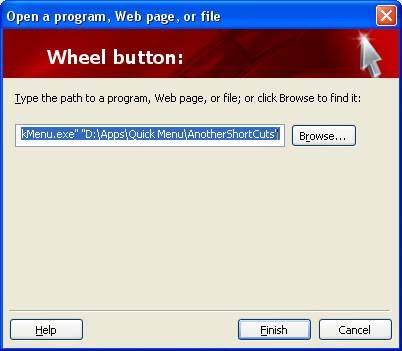
- At the bottom of the drop down list, there is a menu item called, Start…(custom) and choose it.
- In the form field, type QuickPopMenu.exe “path of the shortcut folder” In this case, “D:AppsQuick MenuQuickPopMenu.exe” “D:AppsQuick MenuAnotherShortCuts” The double quotes are necessary.
- That’s it. Now you can call the menu from the folder which you specified by pressing the middle button.


Hi Michael,
I only found this beautiful tool last week – however I struggling already with one issue.
I need to connect to a few servers via remote desktop. So I thought to create a submenu, i.e. a folder, and store there all RDP files.
But when I start/restart Quickmenu, it does not recognise these files. Is there any way to get QuickMenu working with *.RDP files?
Answering the question myself – You simply have to add the extension RDP to the extension list:
Right click Tray icon > Settings > Add File Extensions